The driver is not working. It does not install Virtual mic Driver. Mobile works as sound is working, but mic does not working in the last update.
Hello @Jamsingh_Rawat,
Is there anything in Device manager?
Example:
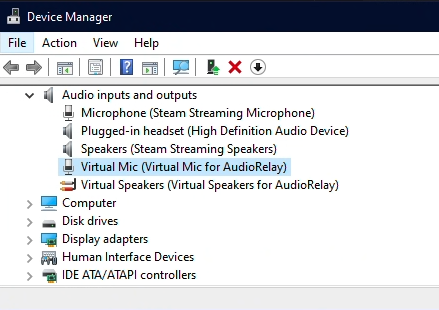
Could you please copy/paste your device and Windows specifications?
In Windows, it’s available in Settings → About.
Example:
| Device name | MY-PC |
|---|---|
| Processor | Intel(R) Core™ i7-6700K CPU @ 4.00GHz 4.00 GHz |
| System type | 64-bit operating system, x64-based processor |
| Pen and touch | No pen or touch input is available for this display |
| Edition | Windows 10 Pro |
|---|---|
| Version | 22H2 |
| OS build | 19045.2604 |
| Experience | Windows Feature Experience Pack 120.2212.4190.0 |
Hey! i have the same problem as the original poster but i cant choose the mic mode on the app, even though the input shows up on device manager. [even trying one person’s comment on No Virtual mic driver - #4 by Shrimp doesnt seem to work on me]
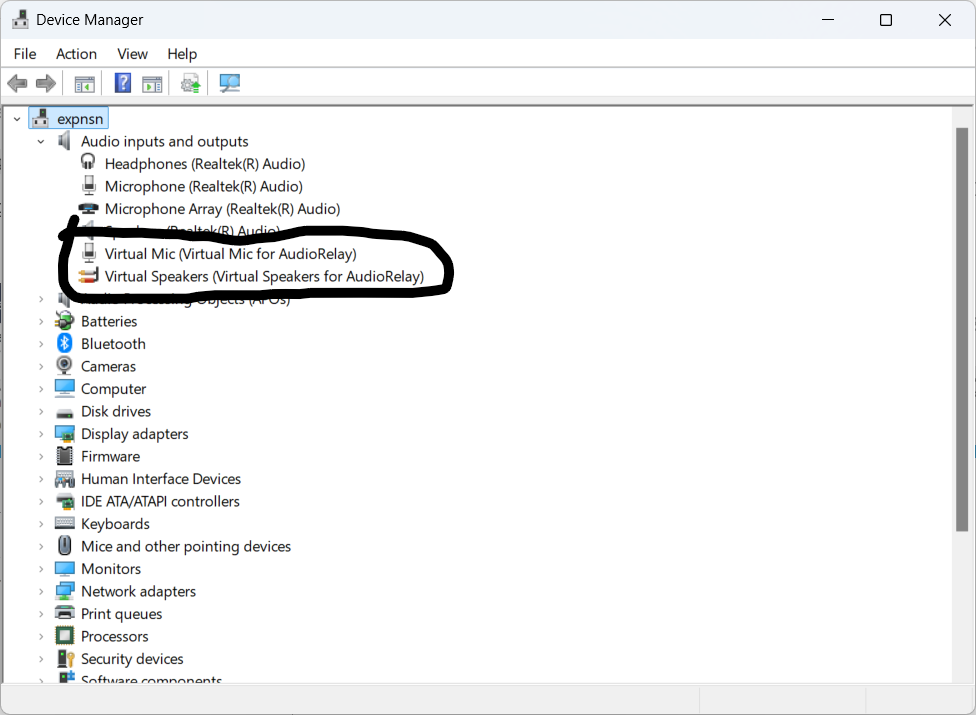
here are my device’s specs:
| Device name | expnsn |
|---|---|
| Processor | 12th Gen Intel(R) Core™ i5-12450HX 2.40 GHz |
| System type | 64-bit operating system, x64-based processor |
| Pen and touch | No pen or touch input is available for this display |
| Edition | Windows 11 Pro |
|---|---|
| Version | 22H2 |
| OS build | 22621.4249 |
| Experience | Windows Feature Experience Pack 1000.22700.1041.0 |
Any news on this issue? I have the same one. I had everything working. Then for another issue I uninstalled the virtual drivers. When I reinstall audiorelay, even if I select “install virtual mic driver”, it simply does not in fact reinstall it. I can’t use audiorelay’s “mic” option anymore
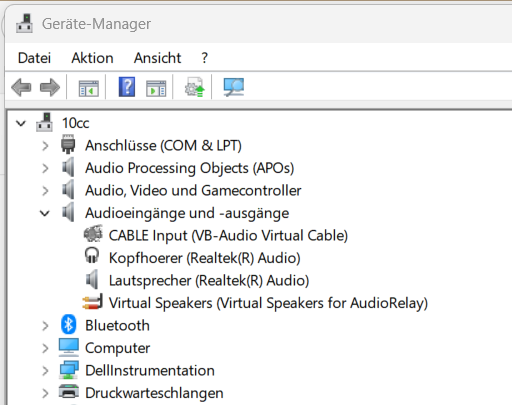
@solarprogeny @MartinB So far, I can’t reproduce the issue. When I disable or remove the mic driver, it comes back when I run the installer again.
There are some things that you could try though
Clean reinstall
As AudioRelay’s uninstaller remove the drivers, you could try to uninstall before trying to reinstalling.
In case the driver is installed but the audio device is disabled
If the device is disabled/not allowed, it’ll be hidden in the Device Manager.
In that case, it should show up if you enable View → Show Hidden devices.
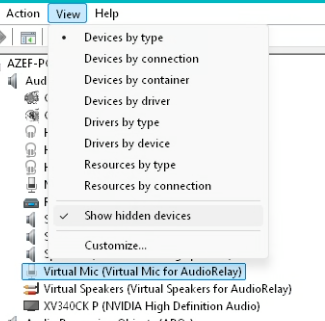
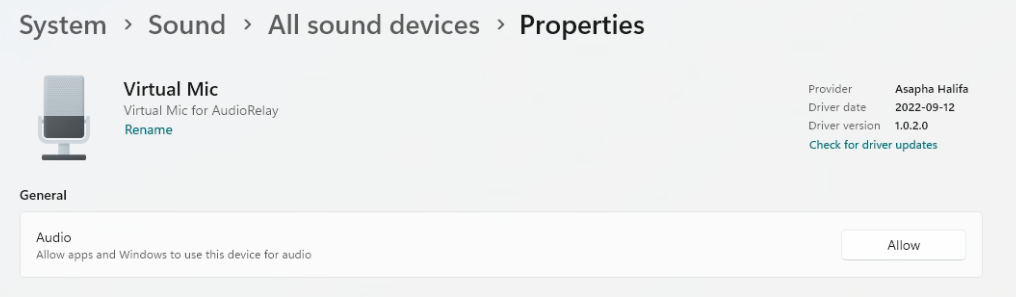
To enable/allow the device, go to Settings → System → Sound → All sound Devices
If Virtual Mic is marked as disabled, click on it then click on Allow
Diagnostics
Running these commands in a Windows powershell could tell us more about your system’s current state
pnputil /enum-drivers | Select-String "audiorelay" -Context 1,8
pnputil /enum-devices | Select-String "audiorelay" -Context 1,6
Example result
Drivers
 Instance ID:                SWD\MMDEVAPI\{0.0.0.00000000}.{957ffc6f-445b-4e80-b20b-89801b74d7d6}
> Device Description:         Virtual Speakers (Virtual Speakers for AudioRelay)
  Class Name:                 AudioEndpoint
  Class GUID:                 {c166523c-fe0c-4a94-a586-f1a80cfbbf3e}
  Manufacturer Name:          Microsoft
  Status:                     Started
  Driver Name:                audioendpoint.inf

  Instance ID:                SWD\MMDEVAPI\{0.0.1.00000000}.{3abce2f8-acd8-4bec-b395-1a4d8a4b8d70}
> Device Description:         Virtual Mic (Virtual Mic for AudioRelay)
  Class Name:                 AudioEndpoint
  Class GUID:                 {c166523c-fe0c-4a94-a586-f1a80cfbbf3e}
  Manufacturer Name:          Microsoft
  Status:                     Disconnected
  Driver Name:                audioendpoint.inf

  Instance ID:                ROOT\MEDIA\0000
> Device Description:         Virtual Mic for AudioRelay
  Class Name:                 MEDIA
  Class GUID:                 {4d36e96c-e325-11ce-bfc1-08002be10318}
  Manufacturer Name:          Asapha Halifa
  Status:                     Disabled
  Driver Name:                oem56.inf

  Instance ID:                ROOT\MEDIA\0001
> Device Description:         Virtual Speakers for AudioRelay
  Class Name:                 MEDIA
  Class GUID:                 {4d36e96c-e325-11ce-bfc1-08002be10318}
  Manufacturer Name:          Asapha Halifa
  Status:                     Started
  Driver Name:                oem34.inf
Devices
  Published Name:     oem56.inf
> Original Name:      audiorelay.virtual-mic.inf
  Provider Name:      Asapha Halifa
  Class Name:         MEDIA
  Class GUID:         {4d36e96c-e325-11ce-bfc1-08002be10318}
  Driver Version:     09/12/2022 1.0.2.0
  Signer Name:        Microsoft Windows Hardware Compatibility Publisher
  Attributes:         Universal
                      Attested

  Published Name:     oem47.inf
> Original Name:      audiorelay.virtual-speaker.inf
  Provider Name:      Asapha Halifa
  Class Name:         MEDIA
  Class GUID:         {4d36e96c-e325-11ce-bfc1-08002be10318}
  Driver Version:     08/26/2022 1.0.1.0
  Signer Name:        Microsoft Windows Hardware Compatibility Publisher
  Attributes:         Universal
                      Attested

  Published Name:     oem34.inf
> Original Name:      audiorelay.virtual-speaker.inf
  Provider Name:      Asapha Halifa
  Class Name:         MEDIA
  Class GUID:         {4d36e96c-e325-11ce-bfc1-08002be10318}
  Driver Version:     09/12/2022 1.0.2.0
  Signer Name:        Microsoft Windows Hardware Compatibility Publisher
  Attributes:         Universal
                      Attested
Checking the installer
Lastly, running the installer with logs enabled could tell us whether it fails to install the drivers
Assuming that you’re installer is in the Downloads for, run this in a Powershell terminal
& "$env:USERPROFILE\Downloads\audiorelay-0.27.5.exe" /LOG="$env:USERPROFILE\Desktop\installation.log"
The interesting part is at the end
2026-02-08 13:38:56.131   -- Run entry --
2026-02-08 13:38:56.131   Run as: Current user
2026-02-08 13:38:56.131   Type: Exec
2026-02-08 13:38:56.131   Filename: C:\Program Files (x86)\AudioRelay\tools\drivers\AudioConnect.DriverHelper.exe
2026-02-08 13:38:56.131   Parameters: install "C:\Program Files (x86)\AudioRelay/drivers/AudioRelayVirtualMic/audiorelay.virtual-mic.inf" *audiorelayvirtualmic
2026-02-08 13:38:56.890   Process exit code: 0
2026-02-08 13:38:56.890   -- Run entry --
2026-02-08 13:38:56.890   Run as: Current user
2026-02-08 13:38:56.890   Type: Exec
2026-02-08 13:38:56.890   Filename: C:\Program Files (x86)\AudioRelay\tools\drivers\AudioConnect.DriverHelper.exe
2026-02-08 13:38:56.890   Parameters: install "C:\Program Files (x86)\AudioRelay/drivers/AudioRelayVirtualSpeaker/audiorelay.virtual-speaker.inf" *audiorelayvirtualspeaker
2026-02-08 13:38:57.757   Process exit code: 0
2026-02-08 13:38:57.761   Need to restart Windows? No
2026-02-08 13:42:12.987   Deinitializing Setup.
2026-02-08 13:42:12.994   Log closed.
@Asapha Thanks for looking into this issue. Here are my results:
- Reinstalling App didn’t bring the mic device back again (Controller is present)
- Uninstalling/Installing brings back the device:
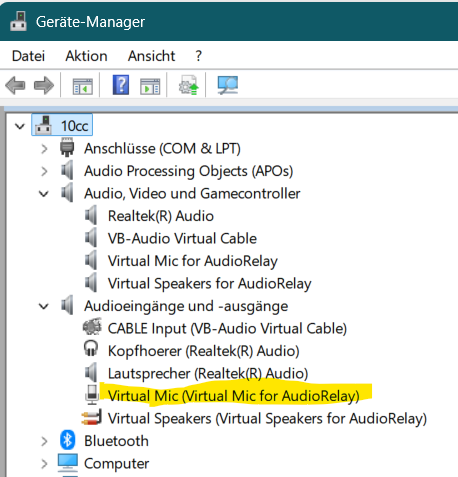
Now everything works fine and I can use my Google Pixel 7a as a microphone on my Dell PC.
Nice, thanks for reporting back
Just wanted to share I ran into this problem. Uninstalling then installing didn’t solve the issue. What did solve it was only selecting the mic to install, then installing again only selecting the speaker. That seems to have done the trick